
Before adding in the mailbox, please make sure that the mail application is closed. This is due to the mail accounts being managed from within the Windows settings.

Right click on the windows start menu button.
Left click on Settings.

In the settings sidebar. Click on Accounts.

Click on Email & accounts.

Under Accounts used by email, calendar, and contacts. Click add account.

Click on Advanced setup.
(You might need to scroll down to view this option)

Click on Internet email.
Please insert the following info
| Email Address | Email Address |
| Username | Email Address |
| Password | Password |
| Account Name | Email Address |
| Send your messages using this name | Your name and/or comapny name |
| Incoming email server | mail.livemail.co.uk:993 |
| Account type | IMAP4 |
| Outgoing (SMTP) email server | smtp.livemail.co.uk:587 |
| Outgoing server requires authentication | Tick |
| Use the same username and password for sending emails | Tick |
| Require SSL for incoming emails | Tick |
| Require SSL for outgoing emails | Tick |
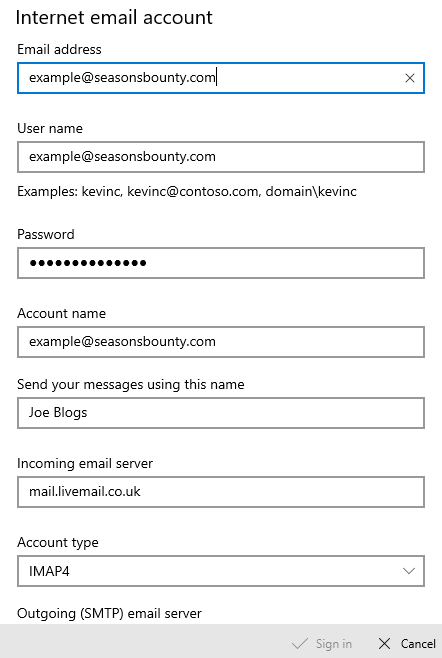

Double check the settings you put in, then click Sign in.
If you got an All finished! message. Click on Done.
The mailbox has been added to the mail app. You can now open the mail app to view it.
